
How to Remove Photo Metadata on Mac
· 4 min read
To remove a photo’s location in your Mac Photos library, select it and choose Image > Location > Hide Location. If you want a separate file with other metadata removed too, use a metadata editor and inspect the exported copy before sharing it.
Those are different jobs. Hiding a location in Photos does not mean that camera details, capture dates or other metadata have also been removed.
Start with the free built-in location controls
Apple documents Hide Location in its guide to managing photo location metadata. This is useful when your concern is the location associated with a photo in your library. Photos also offers Revert to Original Location, so treat the change as a library adjustment and check any file you export separately.
For a photo already in Finder, open it in Preview and choose Tools > Show Location Info. If Preview recognizes GPS information, it shows the coordinates and a map. Apple’s Preview guide explains this inspection step. A missing map does not prove that all other metadata is absent.
If location is all you need to manage, start there. You do not need a paid app just to use Photos’ location controls.
Remove selected metadata from a copy with Scrubb
Scrubb is our metadata inspector and remover for Mac, iPhone and iPad. The inspector is free, and the first five cleaned exports are free. Check the App Store listing for the current macOS requirement before downloading.
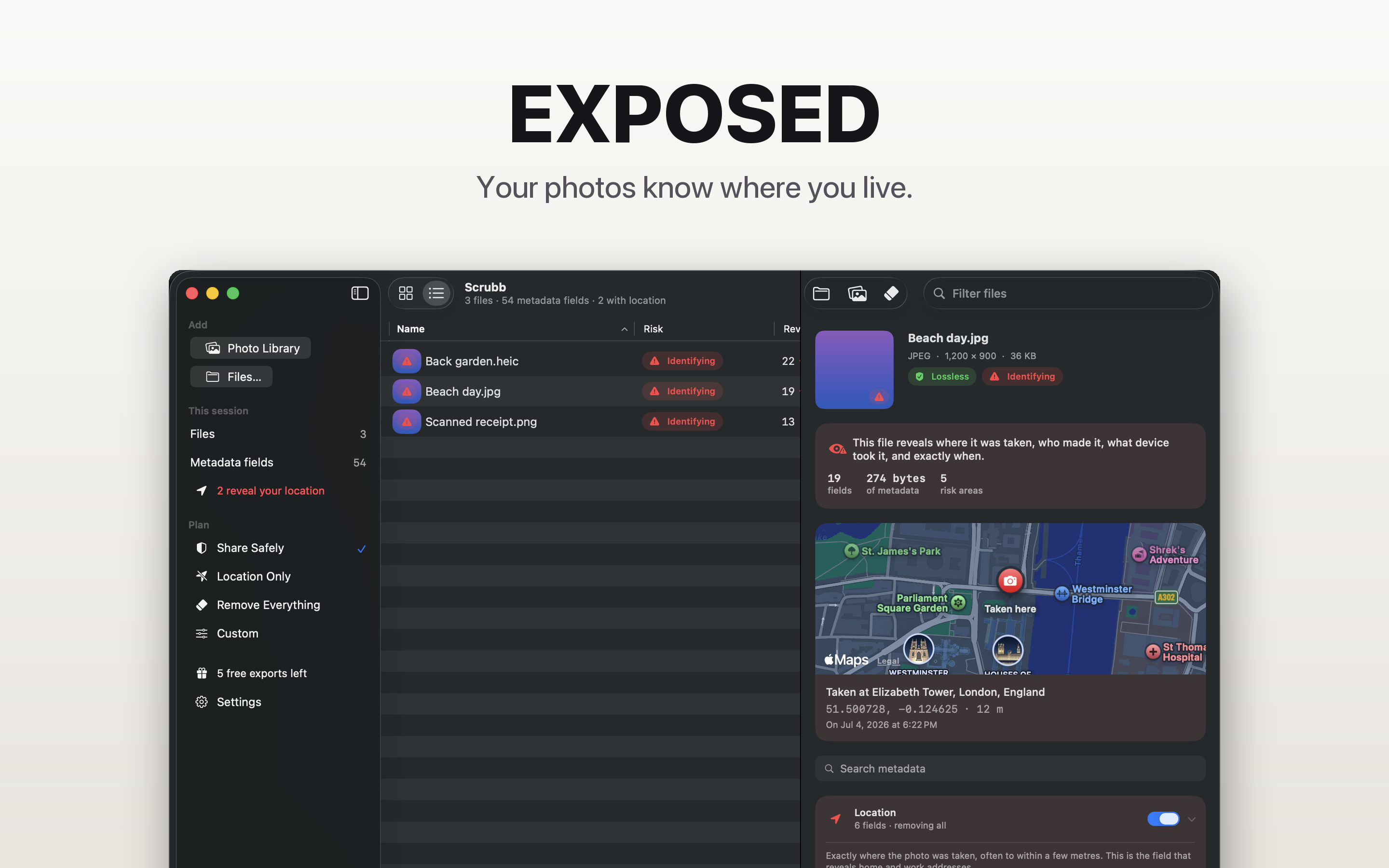
- Add the actual file you plan to share. Drag photos from Finder onto Scrubb’s window, or use Add Files in the toolbar. Working from files makes it easier to track the exact input and output.
- Inspect a photo. Select its row to see the recognized metadata in the inspector. Look for location, identity, device details and dates. Different files contain different fields.
- Choose a removal plan. For supported photos, Location Only targets GPS data. Share Safely targets location, identity, editing history and embedded previews. Some formats remove metadata in blocks, so additional fields can disappear; review the result. Remove Everything targets the removable metadata; information needed to display the image remains, and the color profile is kept by default.
- Click the eraser button to open Clean. Review what will be removed. If preserving image data is essential, first leave Allow re-encoding when there is no lossless option off in Scrubb’s Settings. The Clean sheet also shows a re-encoding control when a selected format requires it.
- Save a copy. Choose Save Beside Original for Finder files, or Save to Folder… for a separate output folder. Click Clean, then review the per-file results. These destinations preserve your original.

Check the saved copy
Open the output file from the destination you chose, rather than reopening the original. Confirm that it displays correctly, then inspect it again. Check the fields you meant to remove, not just the file size.
Scrubb checks the cleaned image data before export. On its lossless image path, those checks include decoding, dimensions, decoded pixels and the targeted metadata. This does not replace checking the saved file or the copy a sharing service delivers.
For a second reader, ExifTool can list the metadata it recognizes:
exiftool -a -G1 -s "photo-cleaned.heic"
Technical fields such as dimensions, compression and color information can remain. File-system dates are also distinct from the date a camera stored inside the picture. Neither is evidence by itself that GPS removal failed.
Keep the original format when you need it
A HEIC photo does not need to become a JPEG just to remove metadata. See our guide to removing HEIC metadata without converting to JPEG. Scrubb has lossless cleaning paths for supported JPEG, HEIC, PNG, WebP and GIF files; RAW files are protected from rewriting. Check the method and result for your particular file.
Removing metadata does not hide an address on a sign, a face, a reflection or anything else visible in the picture. Crop or redact visible details separately.
For other devices and media, see removing location from iPhone photos and removing video metadata.